
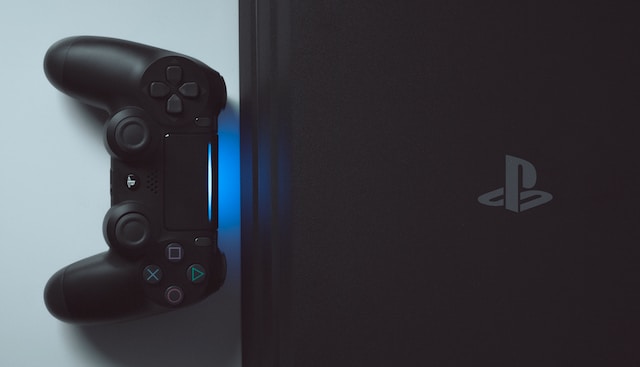
Have you ever found yourself in a situation where the need arises to factory reset your PlayStation 4 (PS4), but you can’t find your controller or it’s not working? This guide is here to help you navigate through such a predicament. It will provide you with step-by-step instructions on how to factory reset your PS4 without a controller, using various methods such as connecting to an external keyboard, or mouse, or even using your smartphone.
The Sony PlayStation 4 is a popular gaming console that provides an immersive gaming experience. However, like any electronic device, it can encounter issues that might require a factory reset. In many cases, this process is simple when you have a functioning controller. But what if you don’t? This article explores various methods of resetting your PS4 without the need for a controller, ensuring you can overcome any hurdle and get back to your gaming adventures.
A factory reset involves restoring your device to its original factory settings, which essentially means erasing all data and settings. When you perform a factory reset on your PS4, all your personal data, game installations, save files, and user profiles are wiped clean.
The system is returned to its initial state – just like when you first bought it. A factory reset is often necessary when you’re experiencing software issues that won’t resolve, preparing to sell your PS4, or when you wish to remove all personal data from the system for security reasons.
Before diving into the process of a factory reset, it’s vital to take certain precautions. Since a factory reset erases all data from your PS4, be sure to back up any important data such as game saves. Sony provides its users with a couple of options for this – you can either back up your data to an external USB storage device or upload saved data directly to online storage if you’re a PlayStation Plus member.
How to Factory Reset PS4 Without a Controller
Now that we understand what a factory reset is and why it might be necessary, let’s delve into the various methods you can use to factory reset your PS4 without a controller.
Method 1: Connect to an External Keyboard
If you have a USB keyboard at hand, you can use it to navigate the PS4’s Safe Mode menu and initiate a factory reset. Here are the steps:
- Turn off your PS4 and plug the USB keyboard into one of the console’s USB ports.
- Turn on your PS4. It will automatically enter Safe Mode.
- Navigate the Safe Mode menu using the keyboard’s arrow keys. Locate and select ‘Initialise PS4’ and press Enter.
- Choose ‘Full’ to perform a complete factory reset.
Note: This method requires a USB keyboard.
Method 2: Connect to an External Mouse
You can also use an external mouse to navigate through the Safe Mode menu and start the factory reset procedure. However, remember that using a mouse is not the recommended approach; instead, whenever possible, it’s preferable to use a compatible controller. Here’s how to do it:
- Turn off your PS4 and connect the USB mouse to the nearest USB port.
- Turn on the PS4. It will automatically enter Safe Mode.
- Navigate the Safe Mode menu using the mouse. Click on ‘Initialise PS4’.
- Choose ‘Full’ to perform a complete factory reset.
Method 3: Via the PlayStation App
If you have a smartphone, you can use the PlayStation App to navigate the PS4 menus and carry out a factory reset. Follow these steps:
- Download and install the PlayStation app on your phone, then sign in.
- Tap on the PlayStation icon at the bottom of the screen and select ‘Connect to PS4’. Pair your PS4 and phone.
- From the app, select ‘Settings’.
- Tap on ‘Initialisation’, then on ‘Initialise PS4’.
- Select ‘Full’ to perform a complete factory reset.
Method 4: Via PlayStation Remote Play App
You can also reset your PS4 without a controller using the PlayStation Remote Play app. Here’s how:
- Download and install the Remote Play app from Google Play or iOS store, and sign in.
- Go to ‘Settings’ in the app, tap on ‘Remote Play Connection Settings’, and enable ‘Remote Play’.
- On your PS4, go to ‘Settings’.
- Select ‘Initialisation’, then ‘Initialise PS4’.
- Select ‘Full’ to perform a complete factory reset.
Method 5: Use Bluetooth or Wireless External Devices
Bluetooth and wireless devices can also be used to navigate the PS4 console and effect a factory reset. These devices can include wireless keyboards, mice, or even certain Bluetooth-enabled remote controls. The process is similar to using a wired keyboard or mouse but you’ll first need to pair the device with your PS4.
Method 6: Use Your Smartphone
Another alternative to a controller is your smartphone. With the right apps, your phone can serve as a remote control for your PS4. Apps like ‘PS Remote Play’ or ‘PS App’ can connect to your PS4 over the same WiFi network and allow you to navigate the console’s menus. This method is particularly helpful if your controller is broken or missing.
Method 7: Use Your Windows PC/Laptop
If you have a Windows PC or laptop, you can use it to reset your PS4. By connecting your PS4 controller to your computer via USB and signing in to the PlayStation website, you can access the settings needed to perform a factory reset. Please note, however, that this method requires a working PS4 controller.
How to Factory Reset PS4 Without Losing Data
While a factory reset typically results in data loss, there is a way to perform a ‘soft’ reset without losing your saved data. This method involves using the PlayStation Network website and requires your PS4 to be online and accessible via smartphone or PC.
To reset your PS4 without losing any data, follow these steps:
- Go to the PlayStation Network website on your smartphone or PC.
- Sign in to your account and go to ‘Settings’.
- Go to ‘PS4 Systems’. Select the PS4 you want to reset.
- Click on ‘Reset PS4’ and choose the ‘Keep Data’ option. This will reset your PS4 without losing any data.
Note: Ensure that your PS4 is connected to the internet for this method to work.
When to Factory Reset Your PS4
A factory reset is not something you perform every day. It’s a last resort solution to solve persistent system issues, or when you’re preparing your console for sale. Here are some reasons why you might want to consider a factory reset:
Reasons Why You Might Want to Reset Your PS4
- Selling Your PS4: If you’re planning to sell your PS4, it’s essential to perform a factory reset. This ensures the new owner does not have access to your personal data and downloaded games.
- Security: If you suspect a security breach, performing a factory reset can help ensure your personal information doesn’t fall into the wrong hands.
- Cleaning Unwanted Data: Over time, your PS4 may accumulate unnecessary data from app installations, game saves, and other activities. A factory reset can help keep your PS4 running smoothly by removing this unwanted data.
- System Issues: Sometimes, a factory reset is the only solution to resolve persistent system issues that cannot be fixed by restarting or updating the system.
How to Turn Off A PS4 Without Controller
In case you also need to know how to turn off your PS4 without a controller, here are some simple steps:
- Locate the power button on your PS4. It’s usually marked with the PlayStation logo.
- Press and hold the power button until you hear two beeps: one when you initially press and another about seven seconds later.
- Once the second beep sounds, release the power button. Your PS4 should now turn off.
- For safety, wait for the power indicator light to stop blinking before unplugging the power cord.
Conclusion
And there you have it! You’re now equipped with several methods to factory reset your PS4 without a controller. Whether you choose to use an external keyboard, mouse, smartphone, or even your PC, these step-by-step instructions should help you overcome any challenges and get your PS4 back on track.
While a factory reset is often a last resort, it can be an effective solution to many persistent issues. However, remember to always back up your data before initiating the process to avoid losing important files. Also, keep in mind that using an external device like a keyboard or mouse is a temporary solution. It’s always best to use a dedicated PS4 controller for the best gaming experience.
By following these detailed steps, you can ensure that your PS4 remains in optimal condition, providing you with endless hours of gaming fun. Remember, no matter the challenge, there’s always a way to reset your PS4 and get back into the game.


A little discussion goes a long way.
Ask a question, share your experience, or help someone find an answer.
There is room for your perspective.
No discussions match this view yet.
Your voice belongs here
Keep it useful. Keep it kind.