
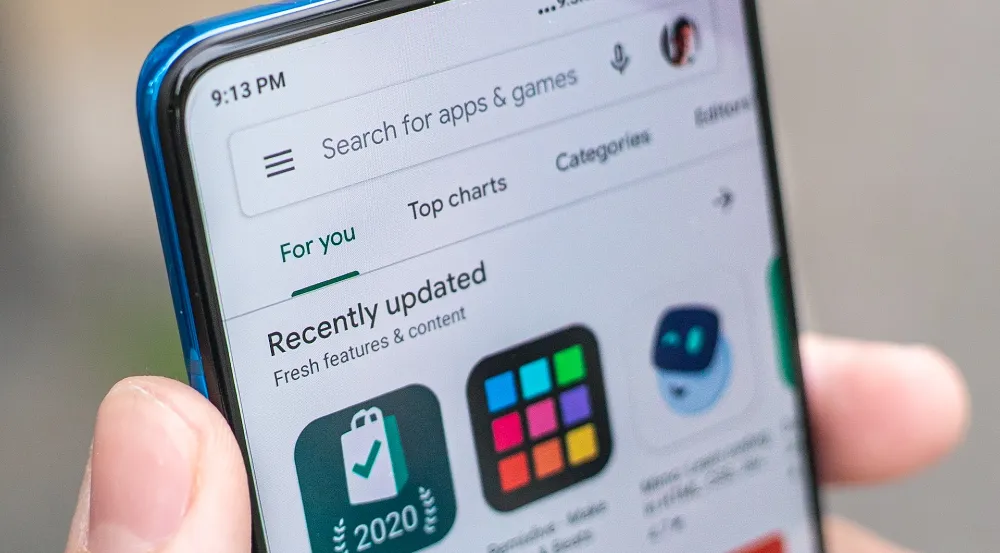
This guide seeks to provide you with step-by-step instructions on how to sign out of the Google Play Store on your Android device. This guide is ideal for both tech-savvy individuals and those who are not as familiar with navigating through the complex world of technology.
Signing out of the Google Play Store is more than just a simple click of a button; it’s an essential action for maintaining your privacy and managing your digital footprint effectively.
Every time you sign in to a platform like the Google Play Store, you leave a digital trail that can potentially be tracked. Hence, regularly signing out can help reduce your exposure to potential online threats.
Furthermore, understanding how to sign out provides you with greater control over your online presence, ensuring you’re not unnecessarily logged in to a platform you’re not using anymore.
How to Sign Out of Google Play Store on Android
Now that we’ve established the importance of signing out of the Google Play Store, let’s explore the two methods you can use to accomplish this task on your Android device.
Method 1: Via Settings On Android
The first method involves signing out via the settings on your Android device. It’s important to note that this process will sign you out of all Google apps and not just the Play Store since Android syncs all your data with your Google account.
- The first step in this process is to open the settings menu on your Android device.
- This can be found in the app drawer, indicated by a gear icon.
- Once you’ve opened your settings, scroll down until you see an option labeled ‘Users & accounts.’
- Tap on it. This will list all the accounts linked to your device.
- Under ‘Users & accounts,’ you will see a list of all the Google accounts currently signed in on your device.
- Tap on the account you wish to log out from.
- After selecting the account, tap on the three dots present in the upper right corner of the screen.
- A drop-down menu will open. From this menu, select ‘Remove account.’
- Confirm your selection, and you’ll be signed out of your Google Play Store on your Android device.
Method 2: Via Google Play Store on Android
The second method for signing out of the Google Play Store involves doing so directly from the Play Store app itself. Let’s look at the steps involved:
- Find the Google Play Store app on your device and tap to open it.
- Once you’re within the Play Store app, locate your profile icon in the upper right corner of the screen. Tap on this icon.
- A drop-down menu will appear once you’ve clicked on your profile icon.
- In this menu, click on the downward arrow next to your name and select ‘Manage Accounts on this device.’
- You’ll be taken to a screen displaying all your signed-in accounts.
- Select the account you want to log out from and then tap ‘Remove account.’
- Confirm your selection, and you’ll successfully sign out of your Google Play Store account on your Android device.
How to Sign Out of Your Play Store Account on PC
If you’re also using the Google Play Store on your desktop, you might want to know how to sign out there as well. The process is quite simple:
- Open your preferred web browser and navigate to the Google Play Store website.
- Once you’re on the Google Play Store website, locate your profile picture in the upper-right corner and click on it.
- In the drop-down menu, scroll down until you see an option labeled ‘Sign Out.’
- Click on this, and you’ll be signed out of your Google Play Store account on your PC.
Conclusion
Signing out of the Google Play Store, whether from your Android device or PC, is a simple yet crucial task that helps maintain your privacy and digital security. This guide has provided step-by-step instructions on how to do just that, empowering you with the knowledge to better manage your online presence. Always remember to sign out of platforms when not in use, as this simple action can contribute significantly towards boosting your online safety.


A little discussion goes a long way.
Ask a question, share your experience, or help someone find an answer.
There is room for your perspective.
No discussions match this view yet.
Your voice belongs here
Keep it useful. Keep it kind.